Templates
Apply a ready-made style, what changes and what’s kept, and publish your own template.
Updated October 22, 20262 min read
Templates are complete styles, made by the team and by the community. You’ll find them in Templates (slaze.cc/dashboard/templates).
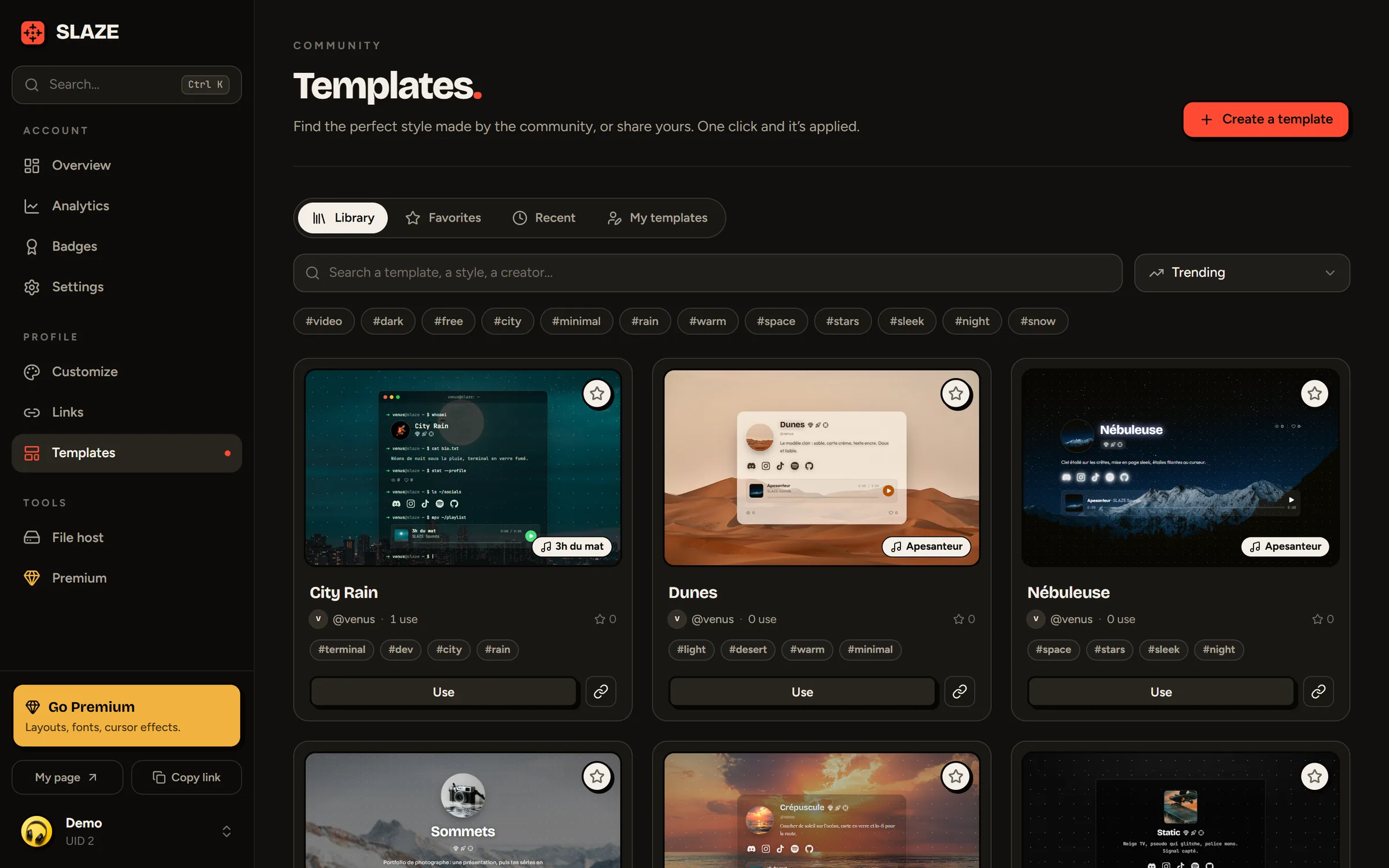
Find a template
- The Library, Favorites, Recent (the ones you’ve applied) and My templates tabs.
- Search looks through the name, the description and the tags. Click a
#tagto filter. - Sorting: Trending (the most applied in the last 7 days), Most used, Most loved, Newest.
- The star adds a template to your favorites.
Click a template to open it full size. The With my profile tab shows it with your avatar.
Apply a template
Click Use, then Apply.
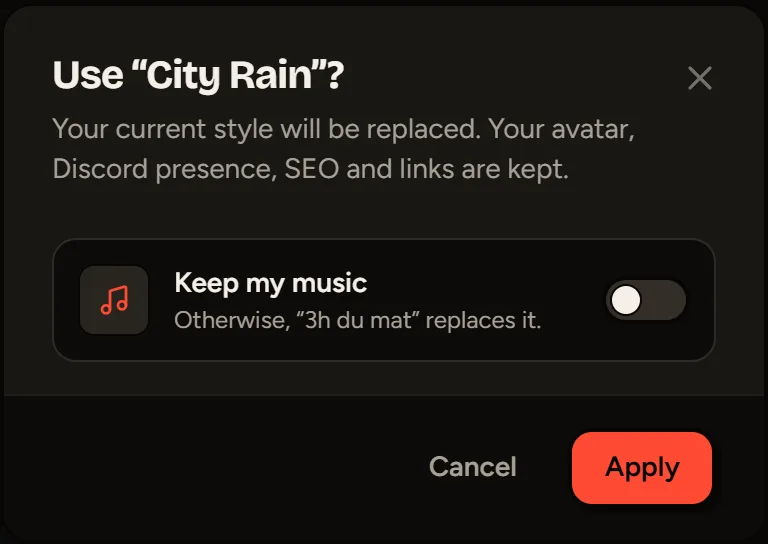
What the template replaces: the layout, the font, the colors, the card, the effects, the click sound, the enter screen, the display settings, the banner, the cursor, the background and the music (unless you turn on Keep my music, or the template doesn’t have any).
What’s kept: your avatar, your description, your location, your typewriter sentences, your blocks, your Portfolio section, your Discord presence, your widget, your SEO, your links and your badges.
Without Premium, the template’s Premium options are removed (a notification tells you which ones).
Publish your template
Click Create a template. The template takes the style of your saved profile.
- Give it a name (2 to 48 characters), a description and up to 6 tags.
- Choose Public (visible in the library) or Private (only visible in “My templates”).
- Click Publish.
You can have 3 templates for free and 30 with Premium (public and private). Your first public template gets you the Creator badge.
The uses counter counts each person only once, and never the author.
Still stuck?
Email us and describe the problem: we’ll reply by email, in English or French.