Email and password
Change your email address, change your password, and get your account back if you forgot it.
Updated October 22, 20261 min read
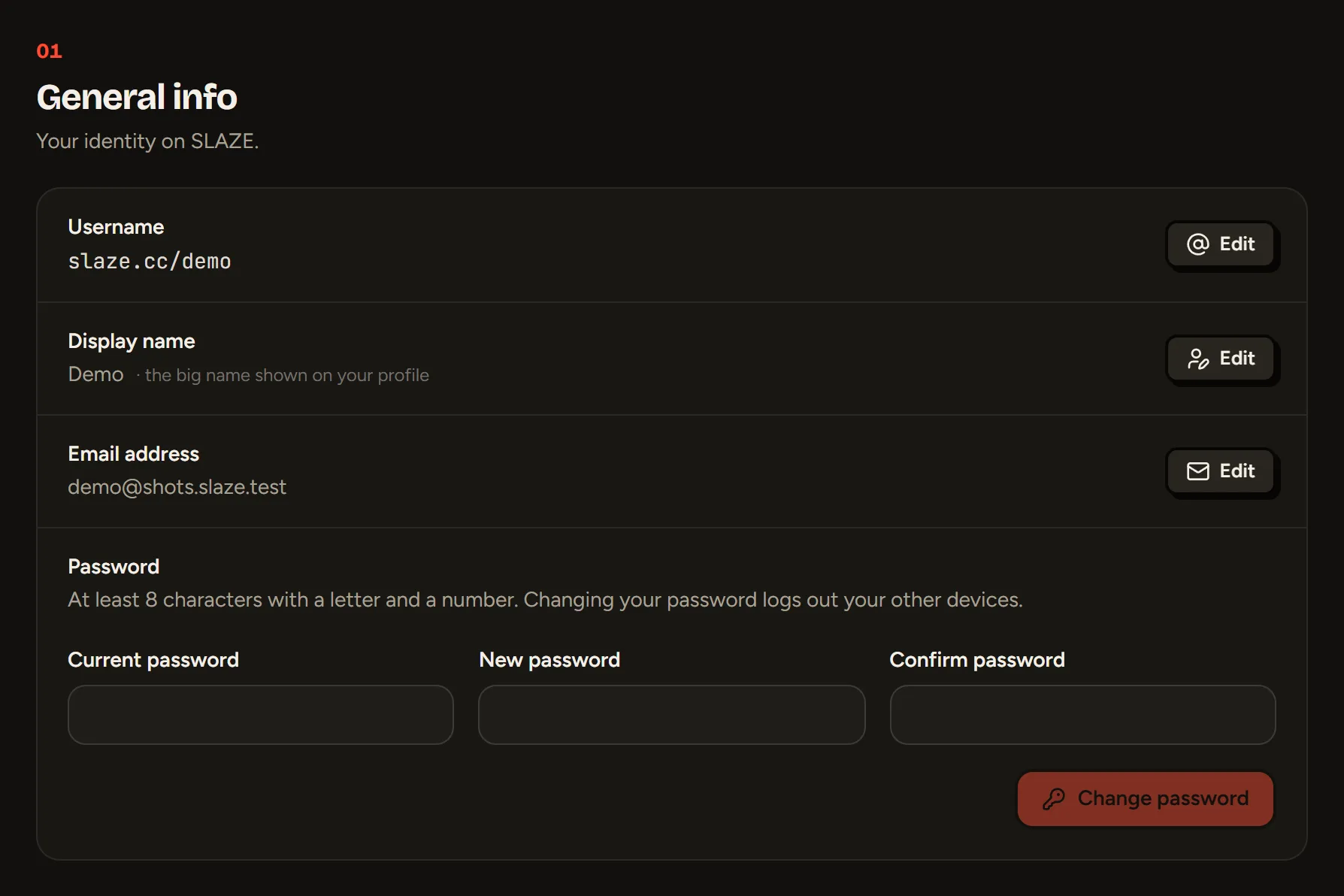
These settings are in Settings → Info.
Forgot your password
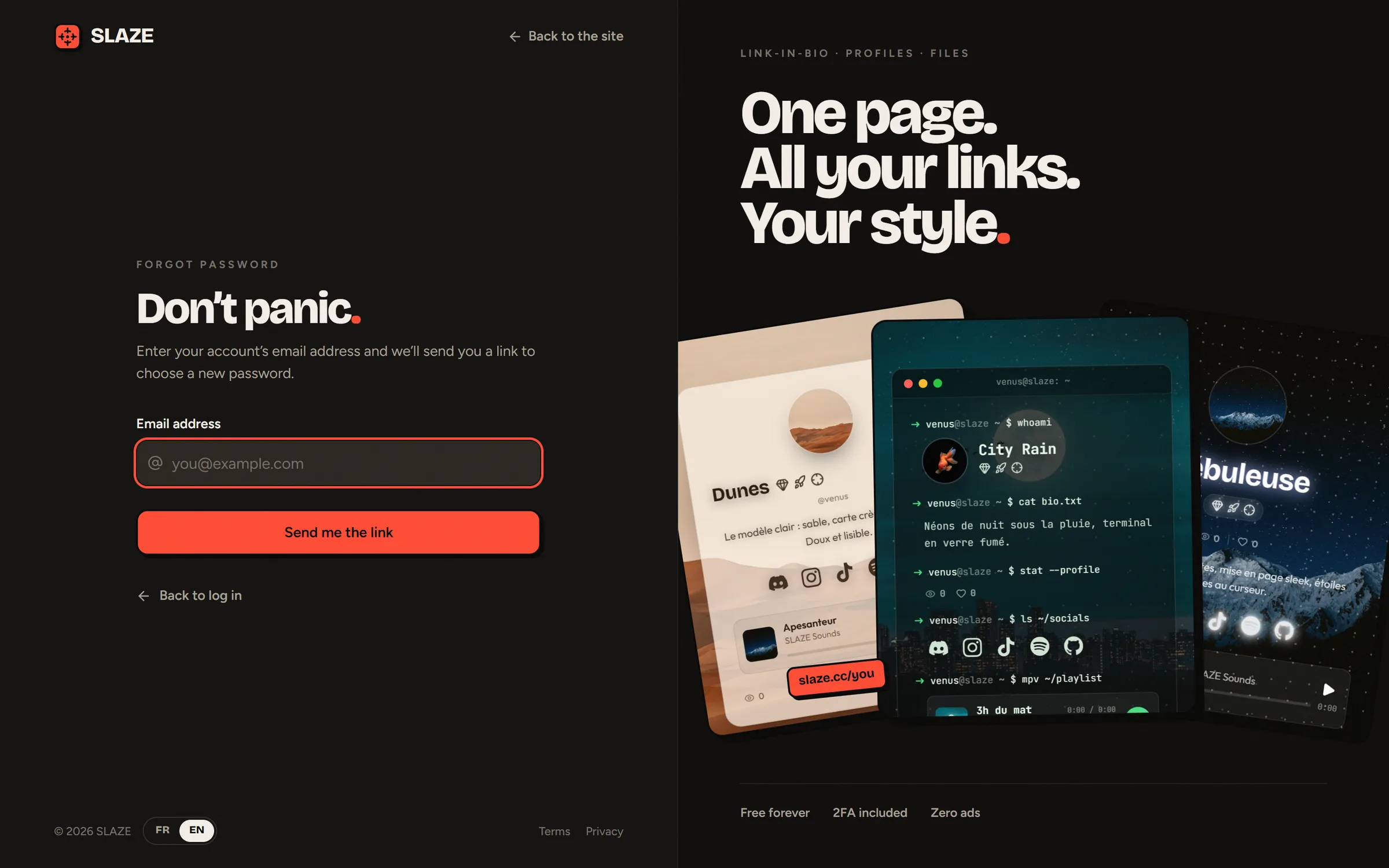
- On the login page, click Forgot password? (or go to slaze.cc/forgot-password).
- Enter your account’s email address and click Send me the link.
- Open the “Choose a new SLAZE password” email and click the link. It’s valid for 1 hour.
- Pick your new password and confirm it.
Once it’s changed, you’re logged out of all your devices and you get a confirmation email.
Changing your password
In Settings → Info, enter your Current password, the New password (at least 8 characters, with a letter and a number) and type it again in Confirm password, then click Change password.
Your other devices are logged out and you get an alert email.
Changing your email address
- In Settings → Info, click Edit next to your email address.
- Enter the New address and your Current password.
- Open the email sent to the new address and click the confirmation link (valid for 48 hours).
Your old address gets an email warning it about the change. If you didn’t make this change, write to us right away.
Still stuck?
Email us and describe the problem: we’ll reply by email, in English or French.