Discord presence and widgets
Show your live Discord status on your profile, and add a clock, the weather or your Roblox account.
Updated October 22, 20261 min read
These settings are in Customize → Integrations.
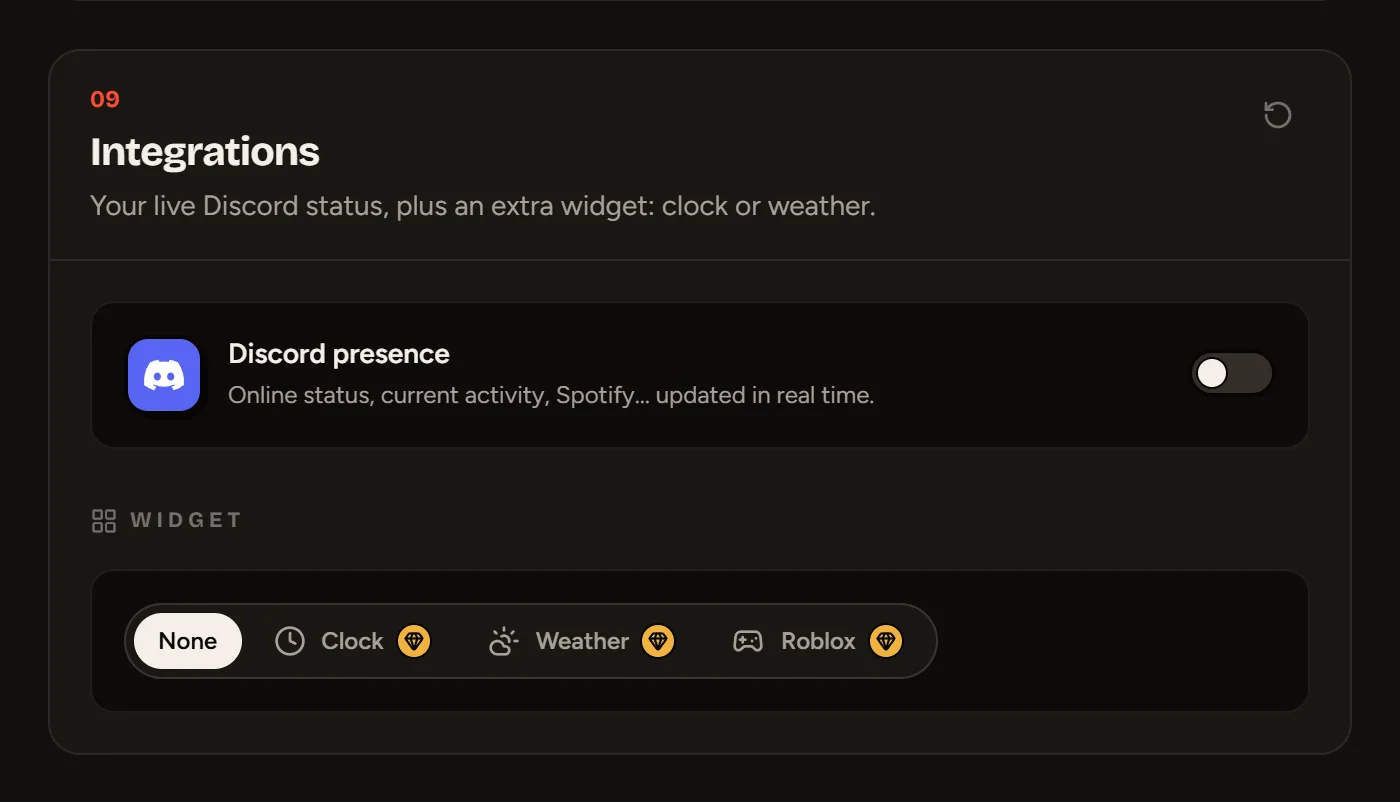
Discord presence (free)
The Discord card shows your live status (online, idle, do not disturb), what you’re doing (game, Spotify music, stream…), your Discord badges and your server tag.
Set it up
- Link your Discord account in Settings → Connections. Your Discord ID fills in by itself. See Discord and Google connections.
- Join the SLAZE Discord server: our bot, which is on that server, reads your presence.
- On that server, open the Privacy Settings and turn on Activity Status.
- In Integrations, turn on Discord presence, then Save.
You can also choose whether to show your activity (Show activity), your Discord badges and your Server tag, and write an Idle text for when you’re not doing anything.
My presence doesn’t show up
- Check that you’re a member of the SLAZE Discord server (or Lanyard) with the same account.
- Check that Activity Status is turned on for that server.
- If you’re invisible on Discord, you show up as offline.
- Remember to Save your profile after turning on the option.
Widget
One widget at a time:
- Clock: the time in a time zone (Paris, Montreal, Tokyo…) or the visitor’s own time, in 14:30 or 2:30 PM format.
- Weather: search for your city. Picking a city also sets the time zone.
- Roblox: enter your Roblox username and click Link to show your account.
Still stuck?
Email us and describe the problem: we’ll reply by email, in English or French.