Use the profile editor
The sections, the live preview, saving and trying Premium options.
Updated October 22, 20262 min read
Your page’s whole style is set in Customize (slaze.cc/dashboard/customize).
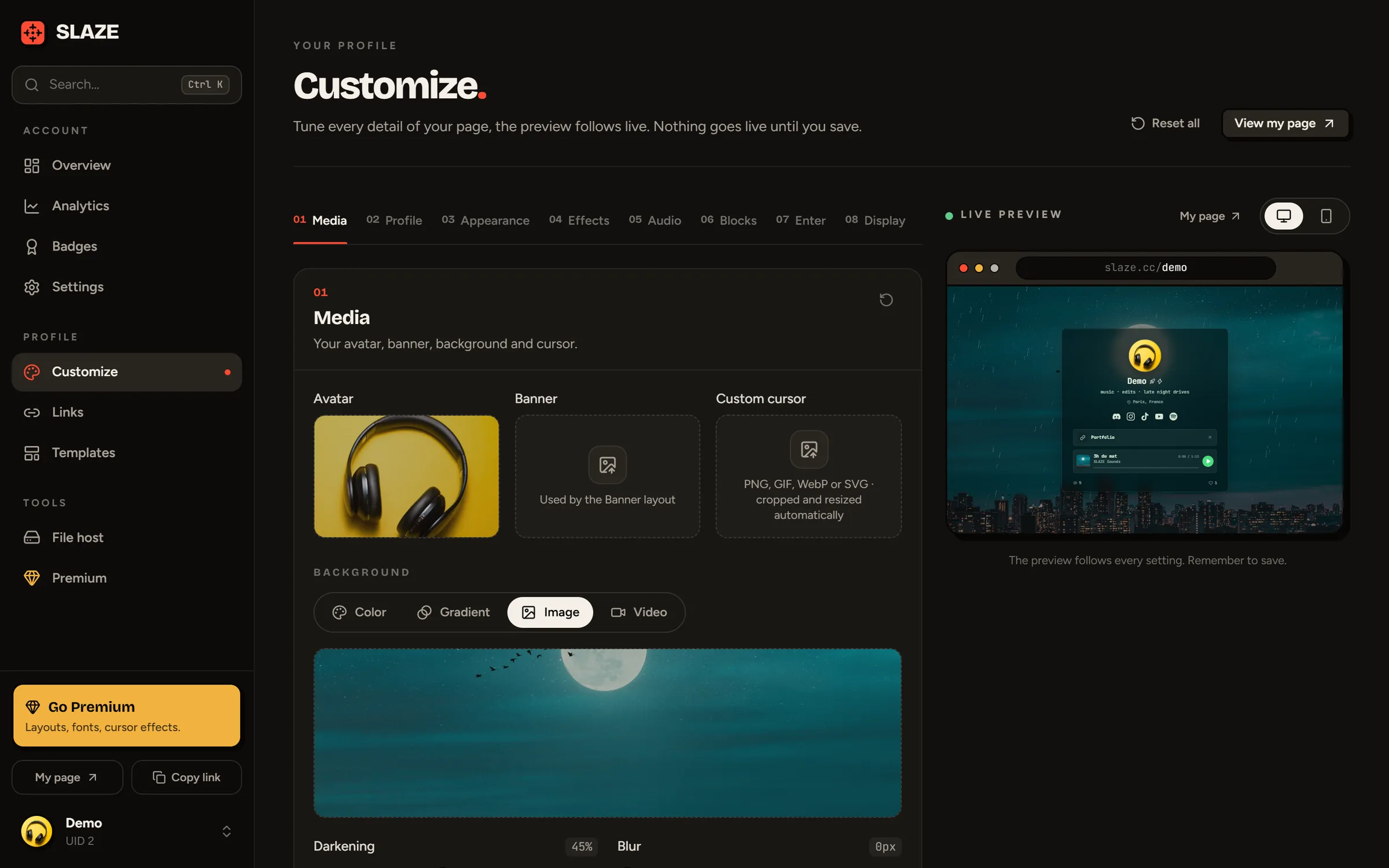
The sections
The editor is split into numbered sections. Click a name at the top to jump straight to it:
| Section | What you set there |
|---|---|
| Media | Avatar, banner, custom cursor, background |
| Profile | Description, location, typewriter effect |
| Appearance | Layout, font, colors, card, avatar shape, animation |
| Effects | Background effect, username effect, cursor effect, click sound, glows |
| Audio | Your playlist and playback |
| Blocks | Text, images, videos, Spotify, countdown… |
| Portfolio | Only with the Portfolio layout |
| Enter | The “click to enter” screen |
| Display | What your visitors see: views, badges, button style… |
| Integrations | Discord presence and widget |
| SEO | Your link’s preview when you share it |
The live preview
On a big screen, the preview sits on the right and follows every setting. The buttons at the top of the preview switch between Desktop and Mobile. On a small screen, the floating Preview button opens the preview full screen.
Saving
Nothing goes live until you save. As soon as a setting changes, a bar shows up at the bottom:

- Save (or Ctrl S, Cmd S on Mac) publishes your changes. Your visitors see the new version right away.
- Cancel discards every change since your last save.
- If you leave the page without saving, SLAZE asks you to confirm.
Resetting
- The ↺ button at the top of a section resets that section to its defaults.
- Reset all (at the top of the page) resets everything to defaults, except your avatar.
Either way, nothing goes live until you save: Cancel has your back.
Trying Premium options
Options marked Premium aren’t locked: you can pick them and see them in the preview. A yellow “You’re trying Premium options” banner then lists the ones you’re using.
If you save without Premium, these options are removed from your page and a notification tells you which ones. Everything else is still saved.
Still stuck?
Email us and describe the problem: we’ll reply by email, in English or French.